
How to Add Accomodation Search Director to Elementor: a Step-by- Step Guide.
Please note that to use JetSmartFilter, you will need to add two additional widgets, which is JetEngine and JetWooBuilder.
Step 1: Create a Filter
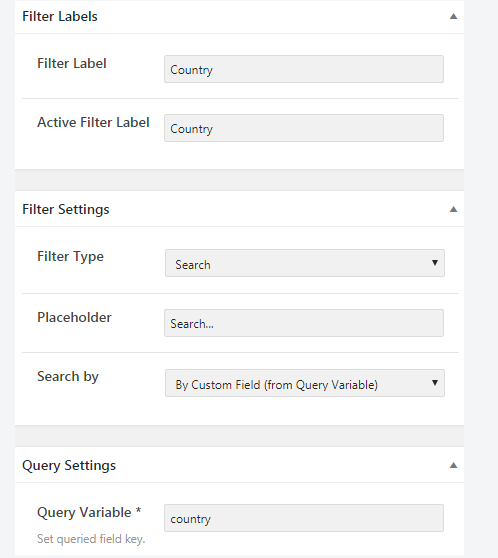
You will need to log into your WordPress Dashboard and navigate to the Smart Filters > Add New. Here, you will need to fill fields such as Name and Filter labels and then choose the Search option in the Filter Type menu.
After this, you will need to choose from two variants in the Search by bar. Please note that the Default WordPress search will apply a default search to this filter. Next, By Custom Field option, the user will make searches in the fields mentioned in the Query Variable text area. You must define the name of the field in the Query Variable.
Step 2: Add Filter to the page
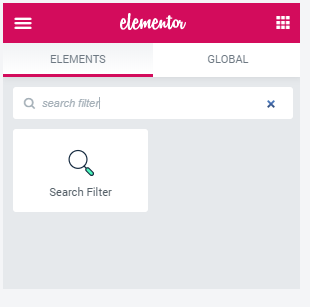
Open the page or post you want to add the Search filter to and then place a Listing Grid on the specific page or post. Please note that it has to be filled with the publications that have the custom field, which you initially typed in the Query Variable bar in step 1. Then drag and drop the search filter widget in the needed section.
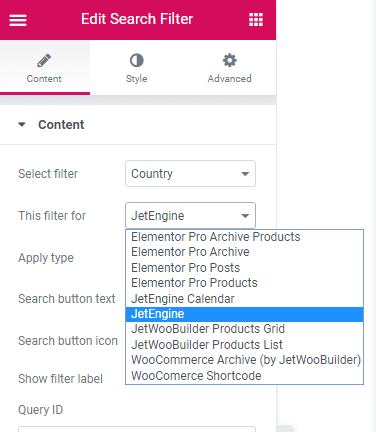
When you get to the Content settings, you must select the filter and choose Jet Engine from the options.
Then style and format your search filter as desired. Once you’re happy click on Publish and you’ll be good to go.
If you would like to find out how to add more advanced filters to products or services. Check out our new post: