
A Step-by-Step Guide to Creating a Mega Menu for Elementor
If you’re currently busy building a WordPress website using Elementor, adding a mega menu using the JetMenu plugin is straightforward and quite frankly, the best choice, especially if you are interested in optimizing your site for users. Mega menus are quite time consuming because of its complex nature, but with Elementor creating an optimal mega menu is simple, we’ll walk you through it:
Step One
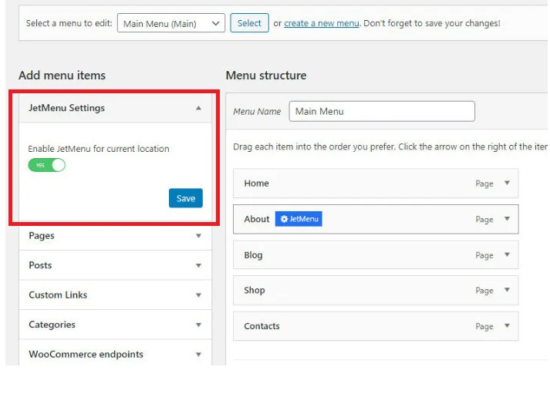
Start by logging in to your WordPress Dashboard, then navigate to Appearance > Menus Tab. You can either select an existing menu for editing or create a new one. Always make sure that JetMenu is properly installed on your website and that it’s working properly. When you see the JetMenu Settings block, you’ll know that it’s active on your site. Then proceed to Enable JetMenu for current location option and then save.
Step Two
You will now be able to choose the item/s you want to add to your mega menu. Simply hover it over it with your mouse and then click the blue JetMenu button. A list of other options will then be available. Switch the Mega Submenu Enabled option to Yes. Then proceed to Edit mega menu item content option which will take you to the Elementor editor.
Important* Please remember that once you enable the mega menu, other sub-items will no longer be visible.
Step Three
You can build a mega menu using any widget. You will be able to use sliders, headers, portfolios, post layouts and videos. You can style your menu according to your preference. Once you are satisfied, go ahead and click the Update button. Then proceed to navigating back to the Menus tab.
You can create multiple columns like the example below and style as you see fit, including adding widgets.
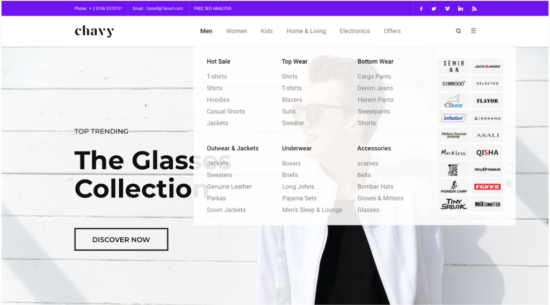
You can modify and customize your menu and other menus as you see fit. All you need to do after you have made your preference changes is to click the Save Menu button. Your mega menu will then be visible when you open one of your site pages in Elementor.
Step four
If you are happy with what you see on your Elementor site page you will be able to add the mega menu in the Elementor panel. You can do this by finding the Vertical Mega Menu or Mega menu widget, then drag it to where you would like it to be displayed.
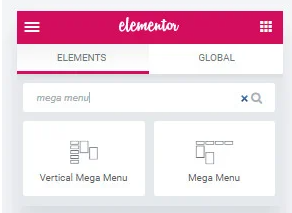
Once you’re there, you can go ahead and select the mega menu you created from the Content block and configure your styling settings to your preferences. All you need to do after that is click on the update option and enjoy your new mega menu.
Creating your ideal mega menu for Elementor has never been more simple. You can now create content for your menu items and visually style your menu as you see fit. The JetMenu plugin works effectively with Elementor, it is not as complex as many may think. You can add your content using a drag-and-drop functionality with Elementor. Enriching and optimizing your website’s user-experience is now way easier than before.