
Quick Method
Use this method if you still have access to your admin and you just need a fresh reinstall
- Download a fresh copy of the theme from → here on the Obox website
- In the WordPress admin, go to → and activate TwentyFifteen
- Click on your theme’s thumbnail and click the Delete link in the lower-right. Confirm delete.
- Click on , then and proceed to install the new zip and Activate it
Manual Method
Use this method if you do not have access to your admin or need to manually delete the old heme files before uploading the new ones
- Download a fresh copy of the theme from → here on the Obox website
- Open the zip file to find the theme folder and extract it to your Desktop (or any easy-to-find location) to find the theme folder, ie “kiosk”
- If you are using Safari and you are seeing a _single extension or version number on the folder, open that folder to find the actual theme folder! The correct folder contains all of the theme files and the style.css
- Connect to your web space using an FTP client and browse to wp-content/themes
- Backup your existing theme folder if you have modifications, or move it out of the themes folder.
- You essentially need to get rid of the existing install in here to reduce margin of error and confusion over which theme is active.
- It is safe to delete the folder if you have not modified the theme files
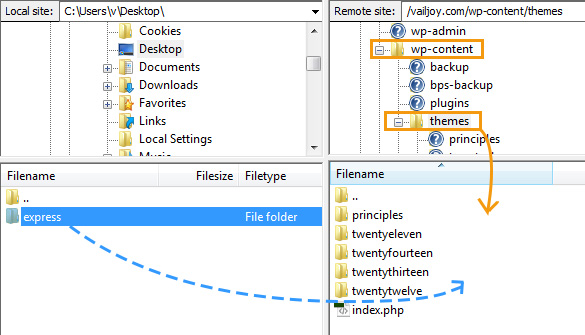
- Drag the freshly downloaded theme folder from your Desktop into the themes directory. The following example shows the express theme folder on the left and the remote server’s themes folder on the right.
- Make sure that the path is wp-content/themes/themename/ and not wp-content/themes/themename.1.2.3/themename as this will cause some functions to break!
- Log in to your WordPress admin panel and go to →
- The theme should still be active. (If not, activate it).
- Click on the thumbnail to view the Theme Details and verify the version number is correct/most recent. This is especially important if you decided to rename your old theme folder instead of deleting it as advicse in step 4, as WordPress may keep the old version active even after a folder rename.
If you are reinstalling due to an outdated theme:
Verify your Theme Options, Widgets and any other important points outlined in the theme’s update notes, as several things may have changed or been reset since your version