
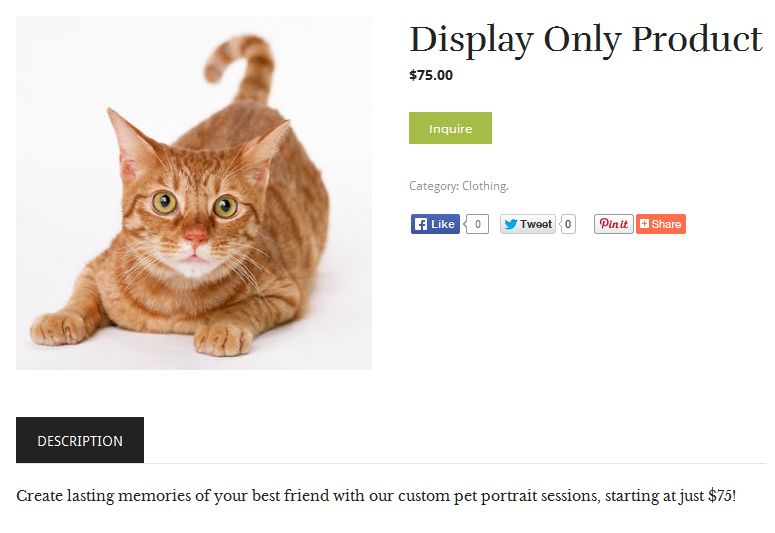
Create a Virtual Product
- Click on >
- Add your Title
- Add a brief description or instructions to the post editor area
- Select External/Affiliate Product from the Product Data panel
- Optional: If you want to display a Contact or Inquiry button:
- Enter the full URL to your contact page or page in the Product URL field
- Enter the text you want to display on the button in the Button Text field, ie “Inquire” or “Request More Info”
- Optional: If you want to display a price:
- Enter the Regular Price
- Optional: If you want to display attributes such as Color, Available sizes, etc, you may add them under the Attributes tab as normal.
- Click on to upload and set your product featured image.
- To add additional images, click on
- Select your Product Category
- Click Publish
Convert Your Display-Only Product
If your display-only products will be available for purchase through your website at any point, you can easily convert themto a normal product by editing the post:
- Click on and locate the product entry, then click it to edit it
- Select the new product type in the Product Data panel (ie Simple Product or Variable Product)
- Enter the new price and stock information, and any variations etc
- Add or edit images by clicking on Add Media, then selecting “Uploaded to this post” from the Images drop-down
- Click Update.
- The product will now display a price and buy now button as normal.